MP4 corruption usually happens during recording, transfer, or storage.
While not every issue is preventable, most corruption cases are caused by avoidable interruptions or unstable storage conditions.
This guide explains practical steps that reduce the risk of MP4 file damage.
Ensure Recordings Finalize Properly
Most MP4 files are finalized when recording stops normally.
To reduce risk:
-
Do not remove batteries while recording
-
Avoid letting devices shut down unexpectedly
-
Wait a few seconds after stopping recording before powering off
-
Ensure sufficient battery charge before long recordings
If a device loses power mid-recording, the MP4 header may not finalize correctly.
Transfer Files Carefully
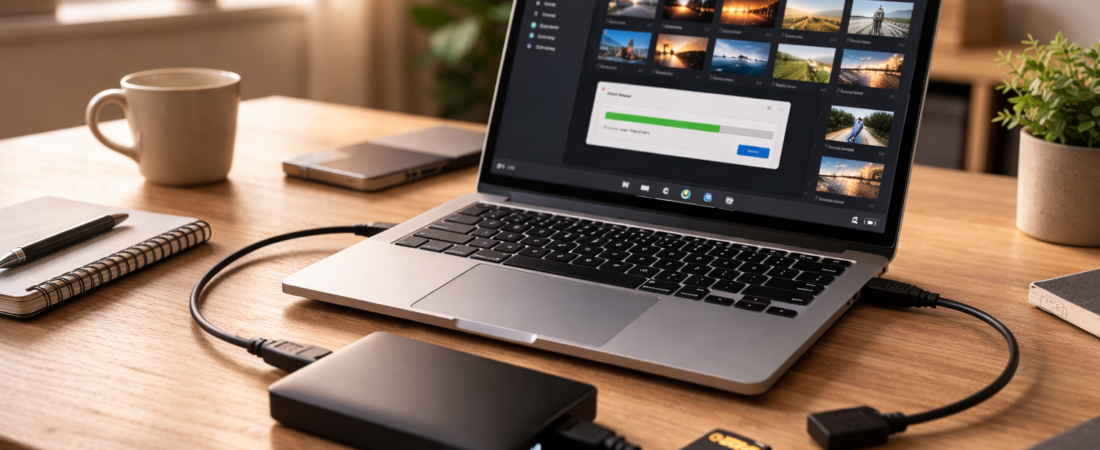
Many MP4 files become corrupted during copying.
To reduce transfer issues:
-
Use a stable USB cable
-
Avoid moving or disconnecting devices during transfer
-
Wait until the transfer process fully completes
-
Use the operating system’s “eject” or “safely remove” option before disconnecting storage
Interrupting a file transfer is one of the most common causes of corruption.
Store Files on Reliable Media
Storage device errors can damage video data over time.
To reduce risk:
-
Use quality SD cards from reputable manufacturers
-
Replace aging or frequently used cards periodically
-
Avoid using damaged USB drives
-
Keep storage devices away from heat and moisture
Bad sectors can develop gradually and affect portions of MP4 files.
Make Backup Copies
If a recording is important, create a backup copy as soon as possible.
Best practice:
-
Keep the original file untouched
-
Copy to a local drive
-
Store a second copy on external storage or cloud backup
If one copy becomes corrupted, the backup may still be usable.
Avoid Editing Directly From External Media
Editing or playing large MP4 files directly from SD cards or USB drives increases risk.
Instead:
-
Copy the file fully to a local drive first
-
Confirm playback works
-
Then begin editing or processing
Working directly from removable storage increases the chance of interruption.
What If Corruption Still Happens?
Even with precautions, corruption can still occur.
If an MP4 file becomes damaged:
-
Stop using the storage device immediately.
-
Avoid repeated write operations to the same card.
-
Check file size and transfer status.
-
Decide whether repair software is appropriate.
If the file size appears correct and the recording completed normally, repair software may be worth attempting.
For a breakdown of commonly used repair tools, see
👉 Best software to repair corrupted MP4 files
Prevention reduces risk, but recovery decisions should always be based on how the corruption occurred.
Bottom Line
MP4 file corruption is most often caused by:
-
Interrupted recording
-
Interrupted file transfer
-
Storage device errors
You can reduce risk by allowing recordings to finalize, transferring files carefully, using reliable storage, and maintaining backups.
While no method guarantees protection, careful handling significantly lowers the likelihood of structural MP4 damage.