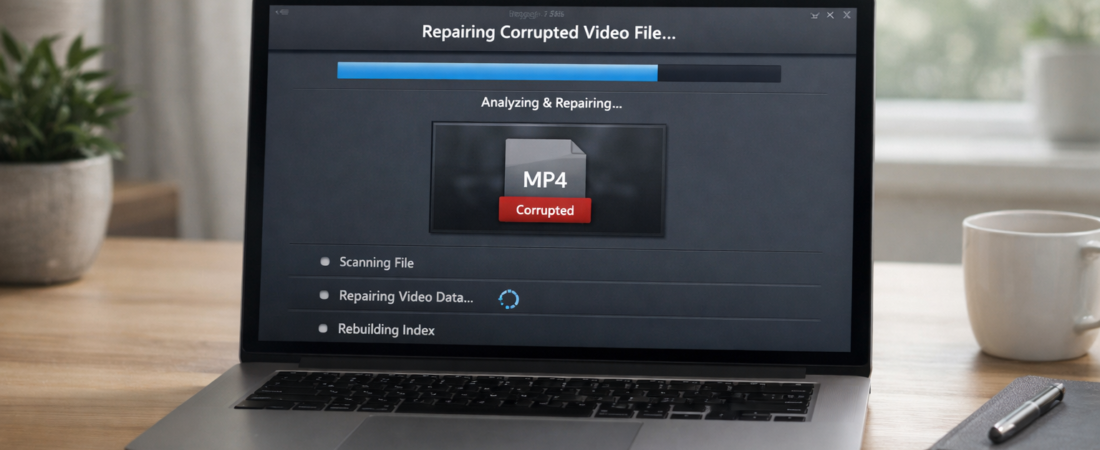
When an MP4 file becomes corrupted, it usually means part of the file’s internal structure has been damaged. The video and audio data may still exist, but the media player cannot read it correctly.
MP4 repair software attempts to rebuild that internal structure so the file becomes playable again.
This page explains:
• What MP4 repair software actually does
• When it works
• When it does not
• Which tools are most commonly used
• How to decide whether it is worth trying
If you are still unsure whether your issue is truly structural corruption, review the explanation of what a corrupted MP4 file actually means before deciding on repair software.
When MP4 Repair Software Is Worth Trying
Repair software is most likely to work when:
• Recording stopped due to power loss
• File transfer was interrupted
• The file shows a normal size but will not open
• The video has sound but no picture
• Playback freezes at a specific timestamp
It is less likely to work when:
• The file size is 0 KB
• Large portions of data are missing
• The storage device has physical damage
• The file has been overwritten
If your MP4 file will not play at all, it is worth trying basic troubleshooting steps first before purchasing software.
What MP4 Repair Software Actually Does
An MP4 file contains:
• Video stream
• Audio stream
• Metadata (structural information)
In many corruption cases, the video itself is still present. The problem lies in the metadata — the part that tells a player how to interpret the file.
Repair software attempts to:
• Rebuild the MP4 container structure
• Reconstruct missing headers
• Realign timestamps
• Re-index audio and video streams
It does not improve video quality.
It does not recover deleted files.
It only attempts structural repair.
Commonly Used MP4 Repair Tools
Below are tools commonly used specifically for repairing corrupted MP4 files.
1. Wondershare Repairit
Typically used for:
• MP4 files that will not open
• Black screen with audio
• Files damaged during transfer
Features:
• Automatic repair mode
• Advanced repair using a sample file
• Support for larger file sizes
Limitations:
• Paid software after trial
• Advanced repair requires a reference video recorded on the same device
Most suitable when the file is important and basic fixes have failed.
2. Stellar Repair for Video
Typically used for:
• Freezing MP4 files
• Files not recognised by media players
• Playback errors after interrupted recording
Features:
• Batch repair
• Preview before saving
• Header reconstruction
Limitations:
• Paid software
• Results depend on severity of corruption
Useful when the file size appears normal but playback fails.
3. Tenorshare 4DDiG Video Repair
Typically used for:
• Playback errors
• Distorted or jittery video
• Recording interruptions
Features:
• Simple interface
• Multiple repair attempts
• Preview capability
Limitations:
• Trial version restrictions
• Not effective for severe structural damage
Often chosen for ease of use rather than advanced controls.
Free MP4 Repair Tools vs Paid Software
Free tools exist, but they typically:
• Require technical knowledge
• Offer no preview before saving
• Have limited success rates
• Do not support advanced reconstruction
Paid tools usually:
• Allow preview before purchase
• Provide structured header rebuilding
• Support larger files
• Include user support
If the file is low importance, trying free options first may be reasonable. If the file is important or irreplaceable, paid repair software is generally more practical.
How to Decide Before Paying
Before purchasing repair software:
-
Confirm the file size is not 0 KB
-
Try opening the file in a different media player
-
Copy the file to another device
-
Review basic troubleshooting steps
If you have not already tried step-by-step troubleshooting, review the basic repair steps first before purchasing software
If the file still fails to play and appears structurally intact, testing a repair tool may be worthwhile.
Most paid tools allow preview of the repaired file before purchase. This reduces risk.
What Repair Software Cannot Do
Repair software cannot:
• Recover deleted MP4 files
• Restore overwritten data
• Fix files with major missing data segments
• Guarantee full recovery
In some cases, only partial repair is possible.
Understanding these limits prevents unrealistic expectations.
Practical Recommendation
If the MP4 file is:
• Important
• Not replaceable
• Normal in size
• Still unreadable after basic troubleshooting
Then testing a reputable MP4 repair tool is reasonable.
If the file can be re-recorded or downloaded again, software may not be necessary.
Repair software works best when corruption is structural rather than physical.
Final Thoughts
Corrupted MP4 files are frustrating, but they are not always permanently lost.
In many cases, the data is still present but unreadable due to damaged structure. Repair software attempts to rebuild that structure.
It works often enough to justify testing in the right situation, but it cannot guarantee success.
Approach it as a measured attempt, not a promise.